This is in regards to using a Carlson CRT robot with SurvPC 7.12 or higher.
You can click the link below for a PDF document with screenshots:
The CRT series instrument requires SurvPC 7.12 or higher
Here is the steps to configure the instrument for the first time:
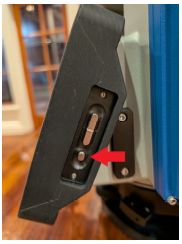
- Power on the CRT instrument using the power button on the right side panel
- After the CRT is fully booted, access the app drawer in Android by pressing the white icon with six dots on the left side of the screen.
- Launch the TS Connector App.
- If the TS Connector App says it is connected, press DISCONNECT.
- Configure the TS Connector app for Protocol: COM, Connect: Long Distance Bluetooth, and Auto-connect:enabled.
- When the settings are correct, push the “Open Connection” button.
- Press the android HOME icon on the right to return to the home screen.
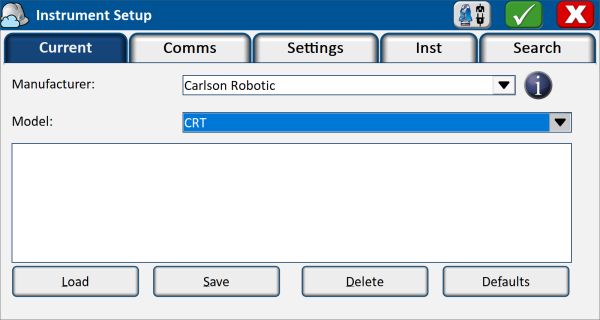
- Run SurvPC 7.12 or higher and in Equip / Total Station set it for:
- Manufacturer: Carlson Robotic
- Model: CRT
- Tap the Comms tab and set it for Type: Bluetooth / BT Type: Windows Mobile then tap the "wrenches" symbol and tap "Find Device".
- Select the "WT41_299xxx" device and tap OK and then tap the Bluetooth plug icon in the top middle to connect to the instrument.
- Fill out your Settings and Search tabs then tap the Green Check in the top right to save your changes.
Links: |
Attachments: |
| Carlson CRT_User Manual_ENG.pdf |
| Carlson_CRT_QuickStart.pdf |
| CarlsonRoboticCRT.jpg |
| CRT_POWERbutton.jpg |
| CRT_WithOnboardLayout.pdf |
| CRT_WithOnboardLayout.pdf |
Keywords: |